Login Area
Overview
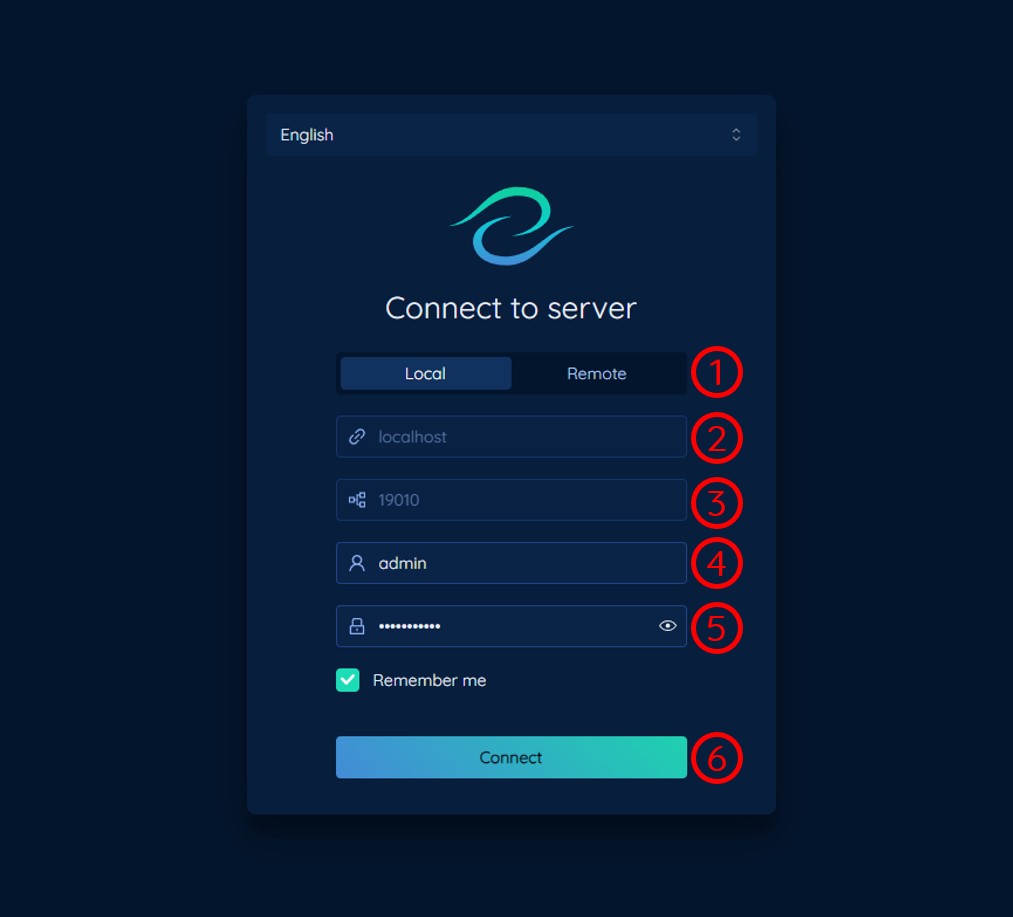
1. Server Location:
Choose whether the Nara server is:
- Local: The Nara server is installed on the same device as the Nara UI.
- Remote: The Nara server is installed on a different device.
2. Server Address:
The address to the sever. If the server location is Remote, enter the server address. Otherwise, the server address will be localhost and this field will be disabled.
3. Port:
The port number of Nara Server.
The default port number for server communication (Websocket port) is 19010, this is different from the default port number for Nara UI which is 19011.
4. Username:
The username of the user in Nara Server.
The default admin username is admin.
5. Password:
The password of the user in Nara Server.
The default admin password is password123.
Please change the default password after the first login. The default password is not secure.
6. Connect:
Click the Connect button to connect to the server. If the connection is successful, the Nara UI will be redirected to the Main Area. Otherwise, an error message will be shown.
If the Nara Server is installed with the Nara UI, the Nara Server will automatically start when the Nara UI is trying to connect to it.
Possible Connection Errors
Unable to connect to the server.
This is likely due to the server address or port number being incorrect. Please check the server address and port number and try again.
Invalid username or password.
This is likely due to the username or password being incorrect. Please check the username and password and try again.