
Windows
Instructions for installing Nara software on Windows operating system.
Info
See System Requirements for more information about the required hardware and software before installing Nara.
Download Nara for Windows
Download and select the latest version of Nara.
There are two installation types:
nara_[version]_[hw_mode].zip: Full installationnara_[version]_[hw_mode]_patch.zip: Patch installation for users who have already installed Nara and want to update to the latest version.
With two hardware acceleration modes:
cpu: CPU-only, suitable for all systems but with limited performance.gpu: CUDA acceleration, suitable for systems with NVIDIA GPU that meets the requirements in NVIDIA CUDA GPUs.
See Hardware Acceleration Support for more details.
Install Nara
- Once you have the installation file (e.g.
nara_2.0.0-beta_[mode].exe) open the installer.
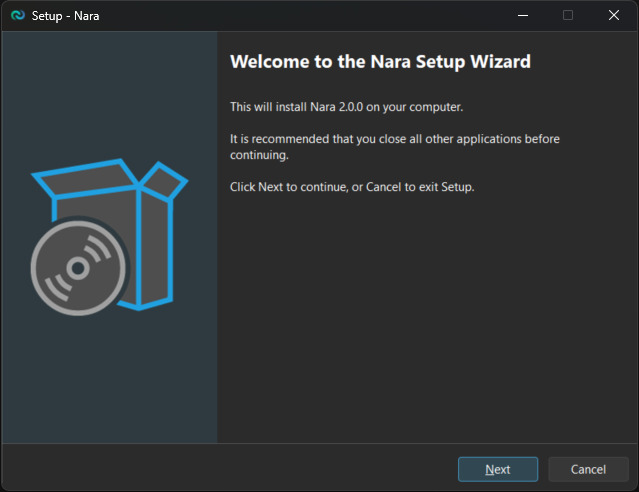
- Follow the instructions in the installation wizard.
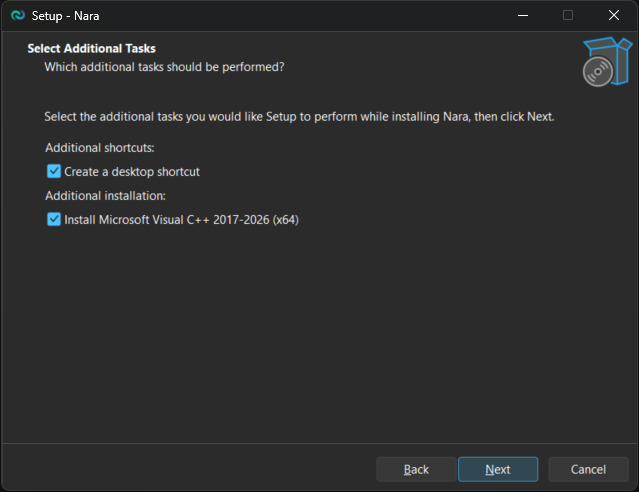
- Select the additional tasks:
- Create a desktop icon: If you want to create a desktop shortcut.
- Install Microsoft Visual C++ Redistributable (x64): Required if you don't have it installed already.
Caution
If Microsoft Visual C++ Redistributable prompted to restart, click on No, I will restart the computer later and continue with the Nara installation.
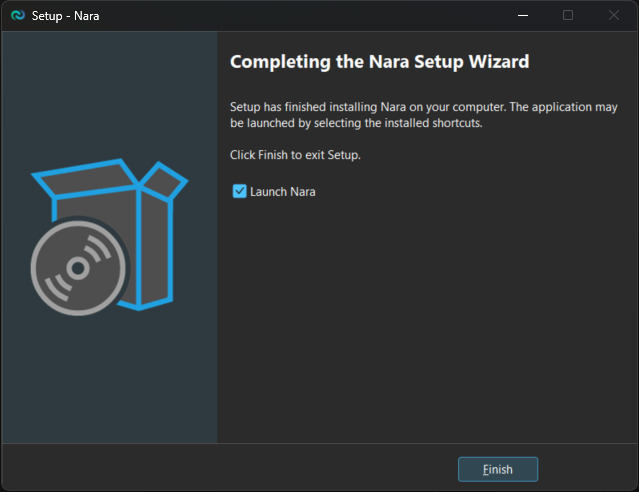
- Once installation is complete, you may be prompted to restart your computer. You may restart your computer at this point.
- You are now ready to use Nara!
Info
If you have restarted your computer, you can find the Nara application in the Start menu or on your desktop if you chose to create a desktop icon.
Patch Nara
Instead of installing the whole Nara software, you can also choose to only patch the Nara core component, usually when updating within minor versions.
Warning
Make sure that your current patch version is compatible with your Nara version. Please refer to the release notes for more information about the compatible patch version for each Nara version.
- Once you have the installation file (
nara_[version]_[mode]_patch.exe) open the installer. - Follow the instructions in the installation wizard to patch the Nara core component.
- Once patching is complete, you are now ready to use the latest version of Nara!
Uninstall Nara
- Go to
Start>Settings - Navigate to
Apps>Apps & features. - Search for
Naraand click on it. - Click on
Uninstalland follow the instructions.