
Windows
Instructions for installing Reva software on Windows operating system.
Info
See System Requirements for more information about the required hardware and software before installing Reva.
Download Reva for Windows
Download and select the latest version of Reva.
Install Reva
- Once you have the installation file (e.g.
reva_1.0.0-alpha.exe) open the installer (you may need to extract the zip file first).
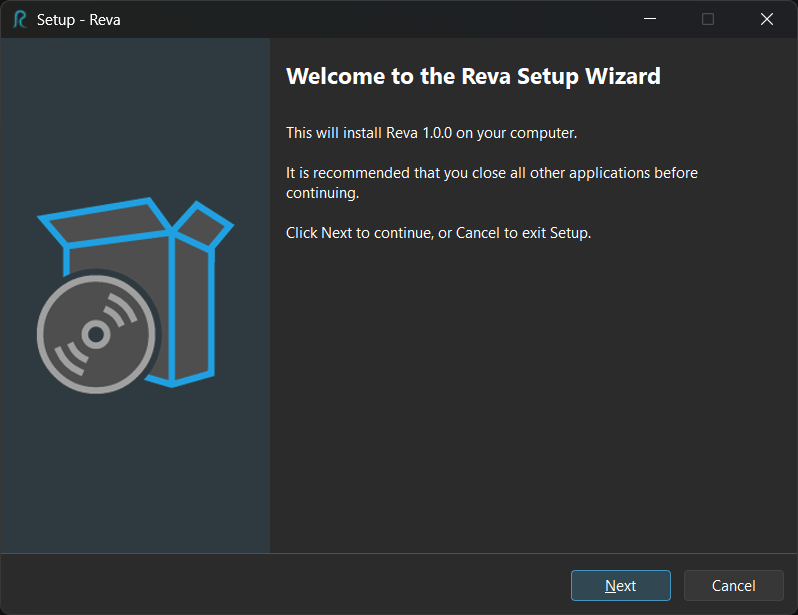
- Follow the instructions in the installation wizard.
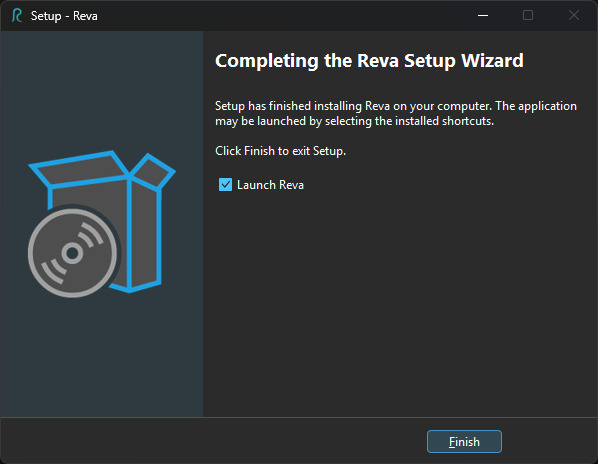
- Once installation is complete, you are now ready to use Reva!
Update Reva
- Run the installer
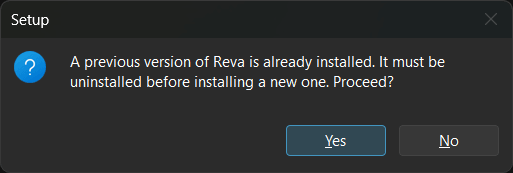
- The installer will detect the existing installation and prompt you to uninstall the existing version first. Click on
Yesto proceed. - Follow the instructions in the uninstallation wizard to uninstall the existing version of Reva.
- Once uninstallation is complete, follow the installation instructions above to install the new version of Reva.
Uninstall Reva
- Go to
Start>Settings - Navigate to
Apps>Apps & features. - Search for
Revaand click on it. - Click on
Uninstalland follow the instructions.
Troubleshooting
Smart App Control Blocking Installation
Important
Once turning the Smart App Control is turned off, Windows may not allow you to turn it on again unless you reinstall Windows.
"In order to ensure a more secure experience, we only enable Smart App Control on clean installs of Microsoft Windows 11."
See here for more information.
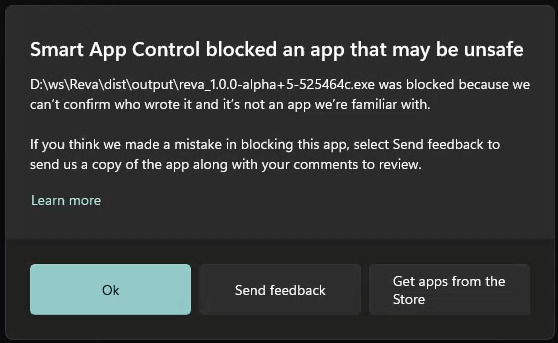
If you encounter a popup from Windows Smart App Control blocking the installation (similar to the image above), do the following:
- Please ensure that you understand the risks of turning off Smart App Control before proceeding. If you are unsure, please consult with your IT administrator or refer to Microsoft's documentation for more information.
- Go to
Start>Settings - Navigate to
Privacy & Security>Smart App Control
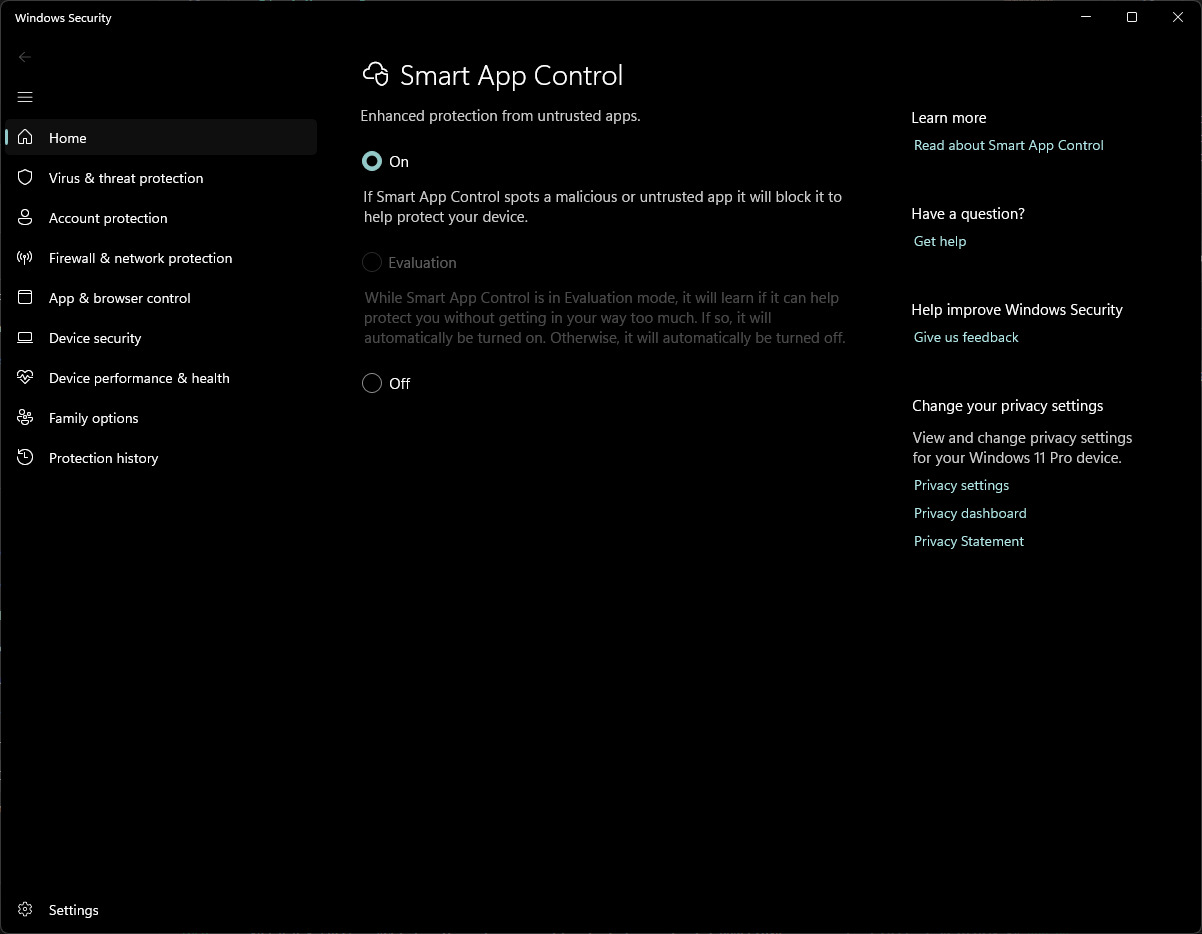
- Turn off
Smart App Control.
Window Protected Your PC Blocking Installation
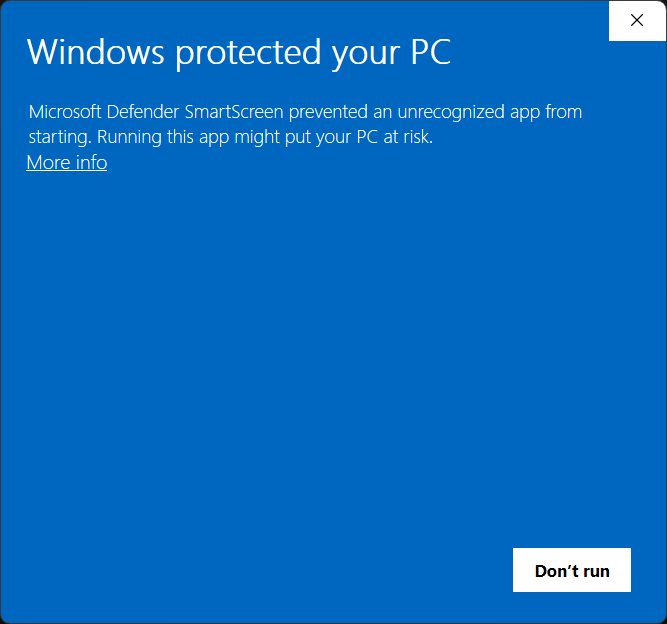
If you encounter a Windows Protected Your PC popup blocking the installation (similar to the image above), do the following:
- Click on
More infoin the popup.
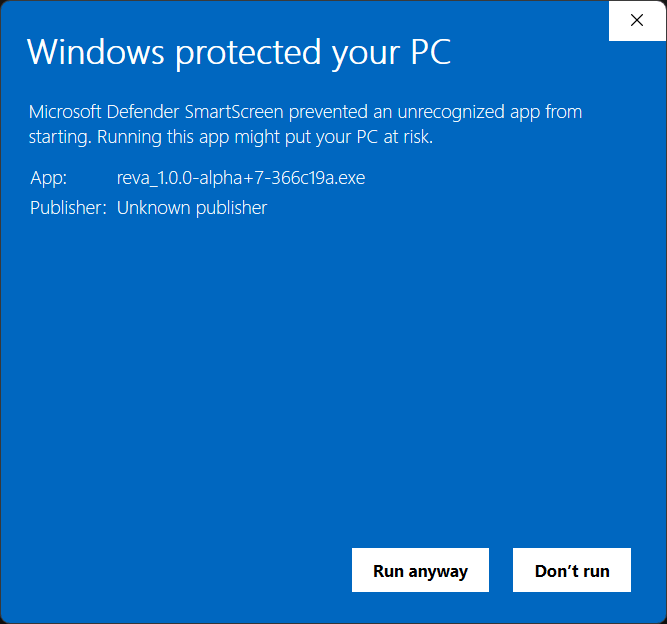
- Click on
Run anywayto proceed with the installation. - Proceed with the installation as normal.