
First Time Setup
A quick start guide to get you up and running with Nara software.
Download & Install Nara
Please refer to the Installation Guide for detailed instructions on how to download and install Nara on your device.
Launch Nara
Once you have Nara installed, you can start it by opening the application:
- Windows: Search for "Nara" in the Start Menu.
- Linux: Search for "Nara" in the application menu.
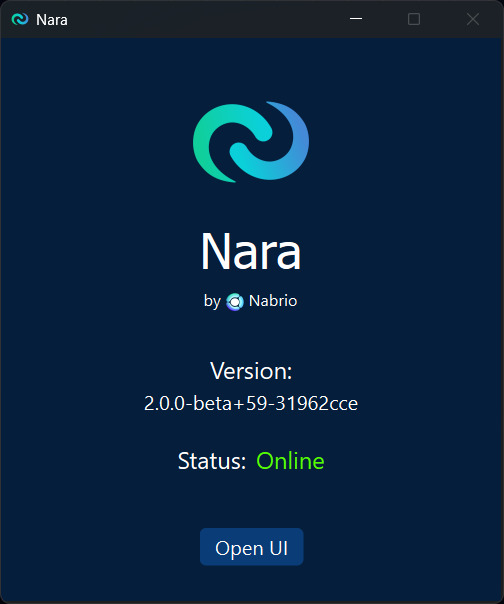
Once launched, you should see a small window with the Nara logo, and Nara Web UI open in your default web browser.
Log in
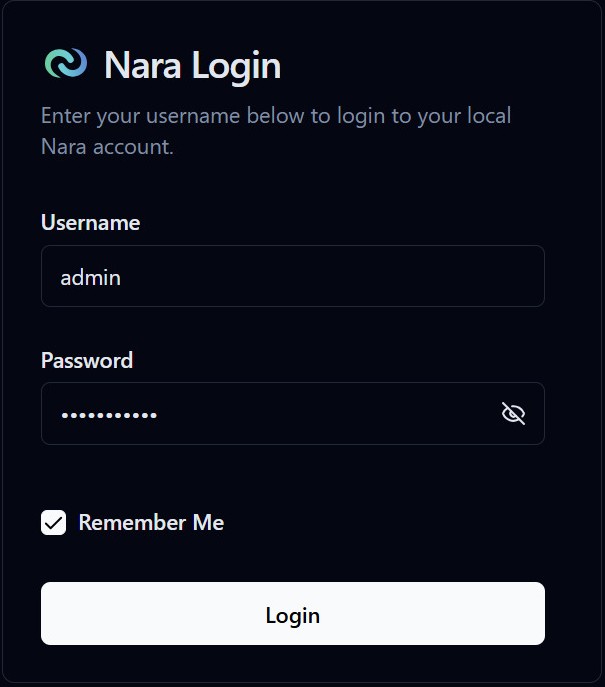 You'll see the login page on the web UI. Use the default credentials to log in:
- Username:
admin - Password:
password123
Warning
For security reasons, please change the default password after logging in for the first time.
License Activation
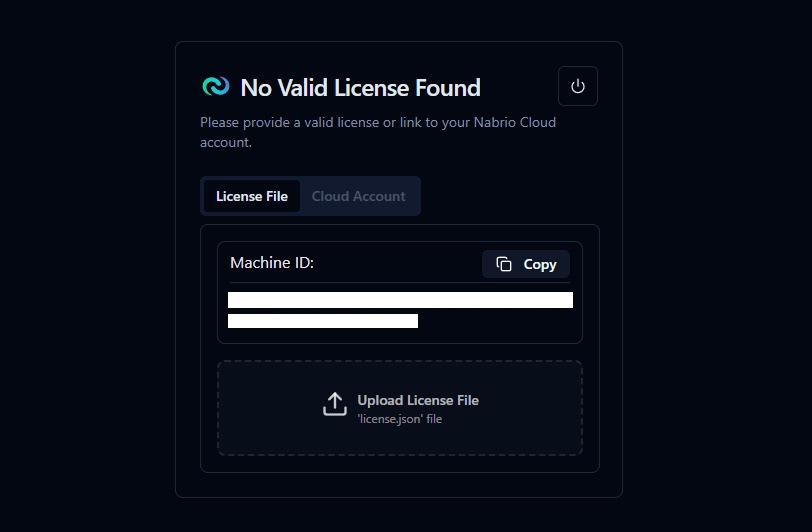
If this is your first time running Nara, you will be prompted to provide a license file. Please contact your administrator, distributor, or sales representative to obtain the license file by providing the following information:
- Machine ID: You can press
Copybutton to copy the machine ID - Software:
Nara
Once you have the license file, drag and drop the license file into the upload area to activate your license. Then you will be directed to the project page.
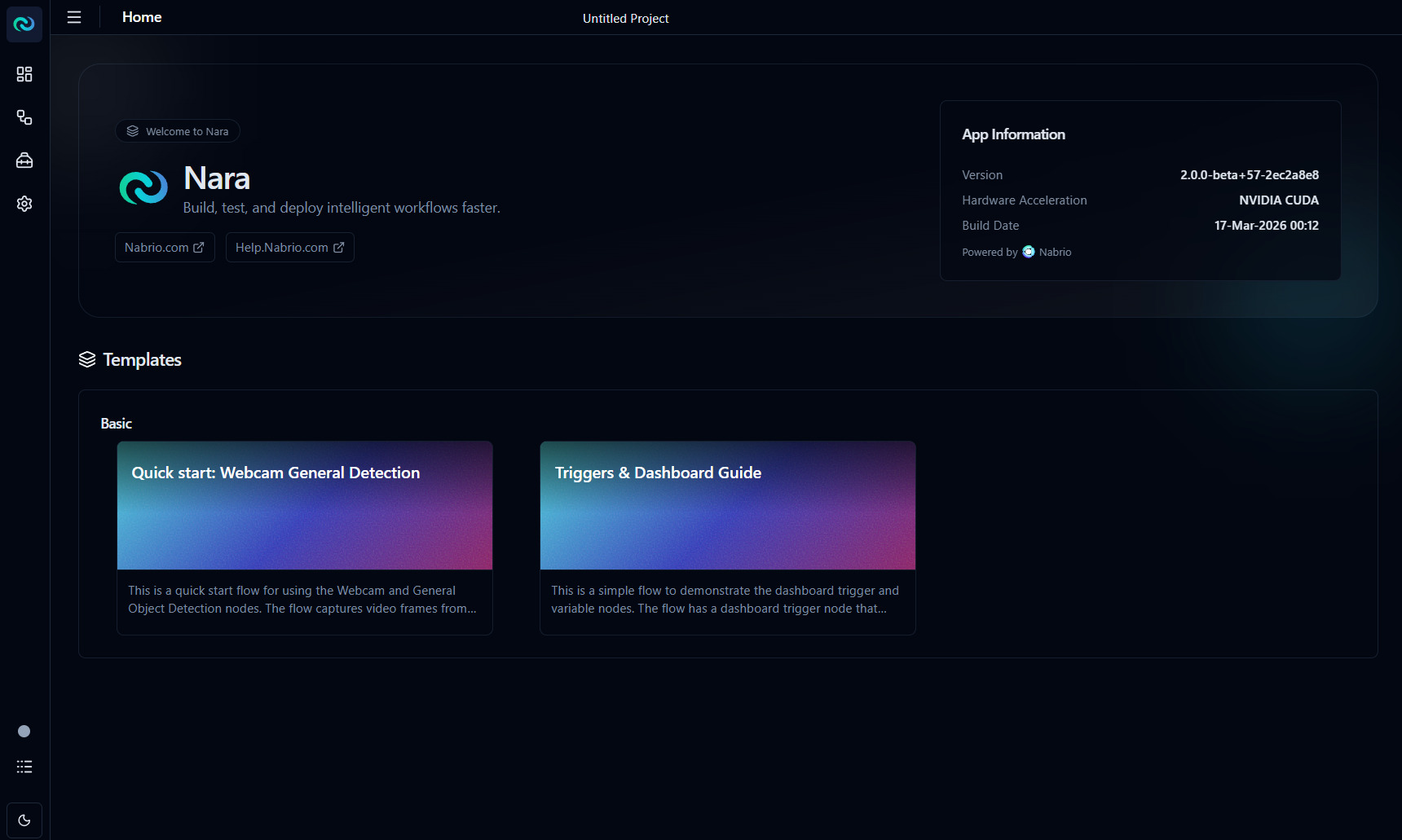
You are now ready to use Nara!