
First Time Setup
A quick start guide to get you up and running with Reva software.
Basic Concepts
Reva Core is the main software that provides the core functionalities for data management and plugin management.
Plugins are additional components that provide specific functionalities. For example, the MMDet plugin allows you to train and export object detection models using the MMDetection framework.
Download & Install
Reva Core
Please refer to the Installation Guide for detailed instructions on how to download and install Reva on your device.
Plugin
For more information on the plugins, please refer to the Plugins Overview page.
Please refer to the Plugin Installation Guide for detailed instructions on how to download and install plugins on Reva.
Note
For the following quick start guide (Train Your First Model), we will be using the MMDet plugin as an example. Please make sure you have it installed and running. See the links below for installation guides and system requirements:
Launch Reva
Once you have Reva installed, you can start it by opening the application:
- Windows: Search for "Reva" in the Start Menu.
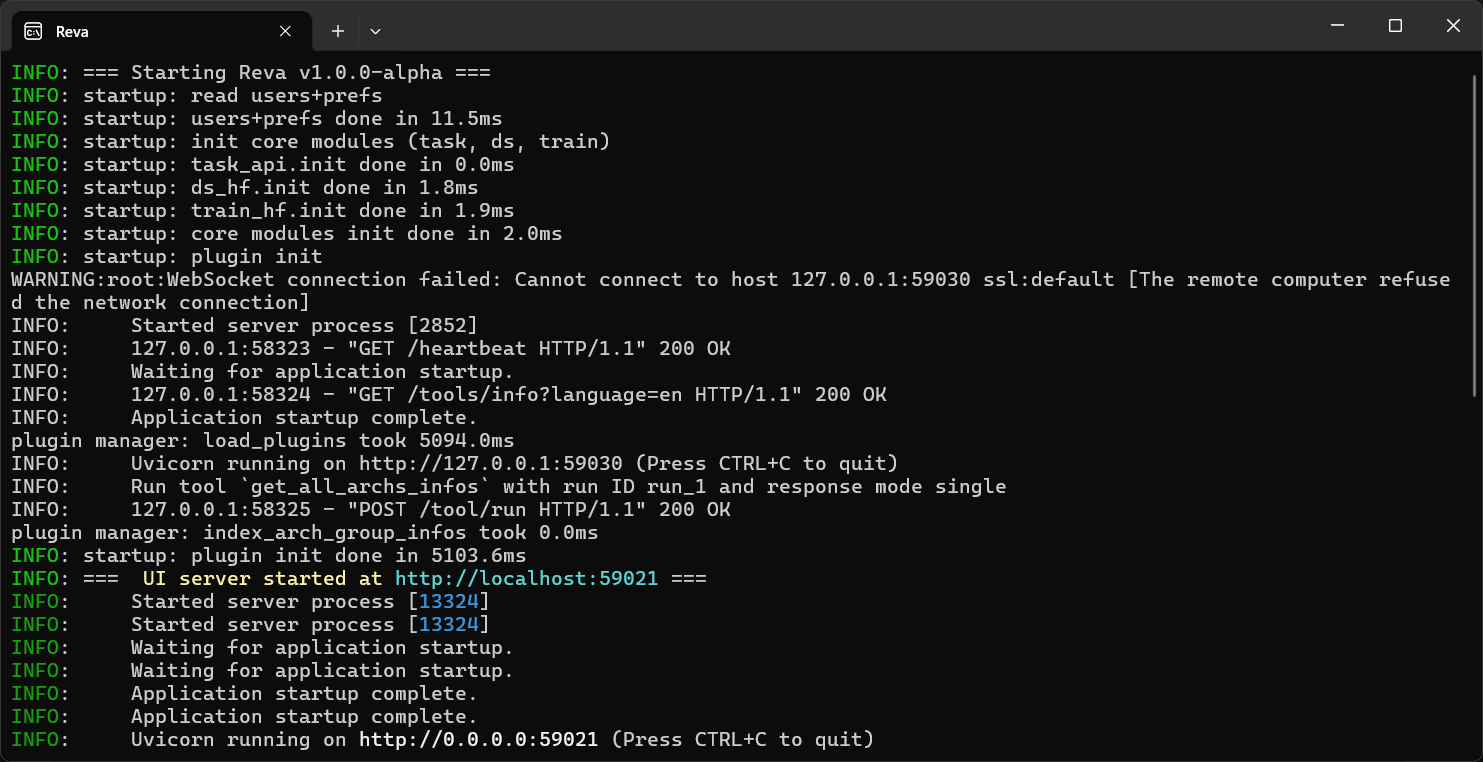
Once launched, you should see a terminal window like the one above, and Reva Web UI open in your default web browser.
Tip
You can manually open the web UI by clicking on the cyan URL printed in the terminal, or by entering http://localhost:59021 in your web browser.
Log in
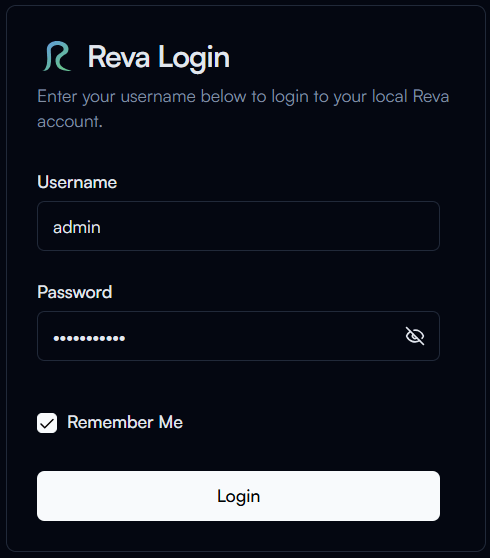 You'll see the login page on the web UI. Use the default credentials to log in:
- Username:
admin - Password:
password123
Warning
For security reasons, please change the default password after logging in for the first time.
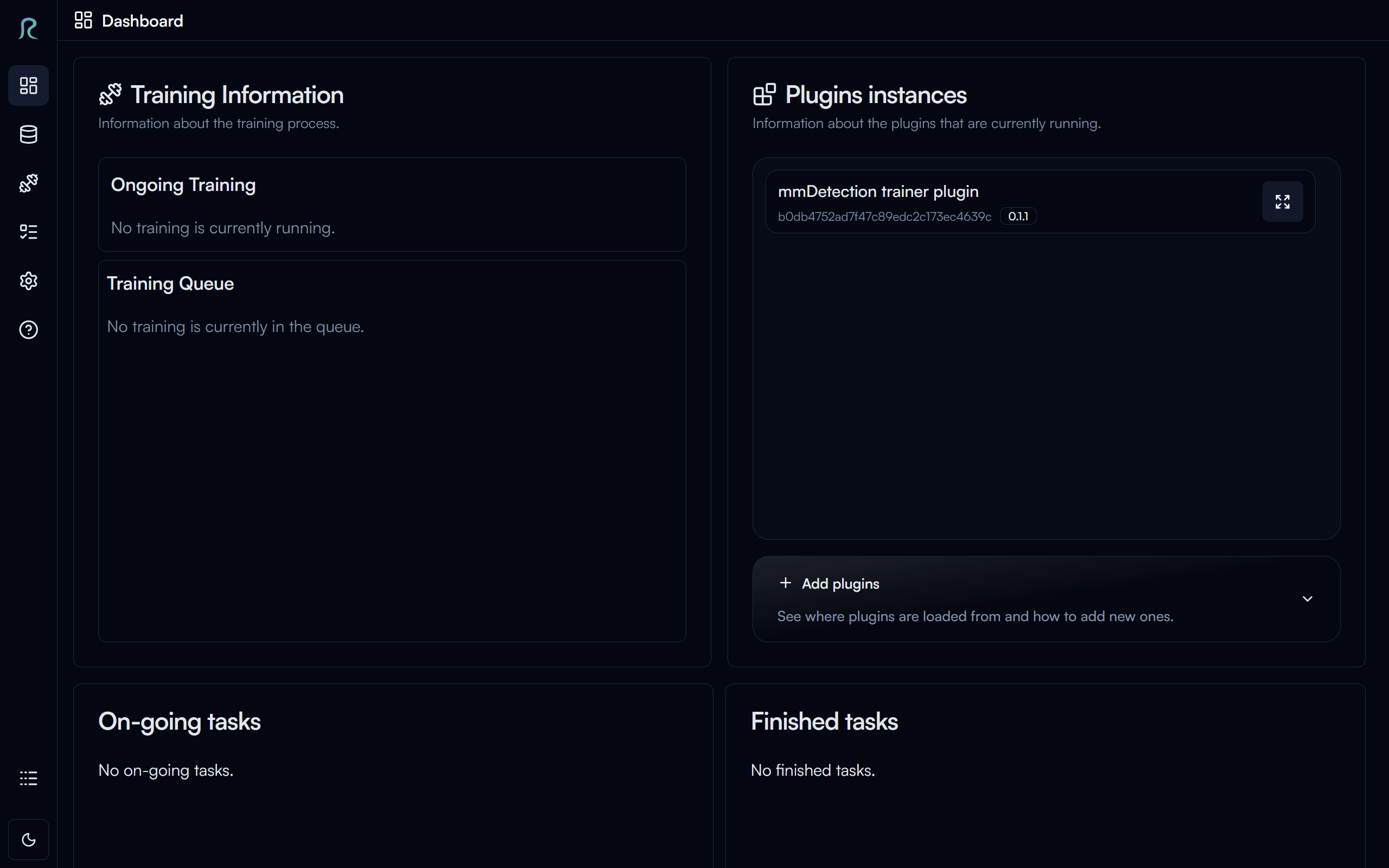
Once you have logged into Reva, you will be greeted with the Home page.
You are now ready to use Reva!