
Navigating Nara
Learn how to navigate through the Nara interface and understand its components.
Left Navigation Bar
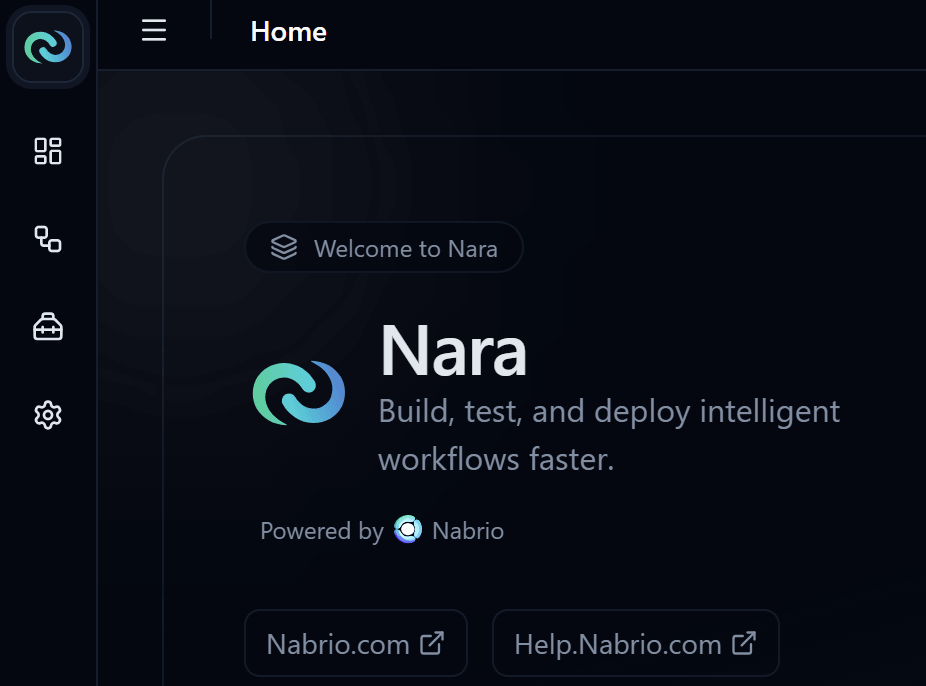
On the left side of the page, you will see the navigation bar. The navigation bar allows you to access different sections of Nara and perform other actions.
Top section
- Home: Takes you to the project page.
- Dashboard: Where are can customize your dashboard with different widgets.
- Flows: Flows page, build and deploy your flows here.
- Toolkits: Find multiple utility tools to help you build your flows.
- Options: Manage your flow, account and other settings.
Bottom section
- Status: Shows the current deployment status of your flow.
- Blue: Deploying
- Green: Running
- Red: Stopping
- Grey: Not deployed
- Errors Log: View app's error logs.
- Theme Toggle: Toggle between light and dark mode.
Top Bar

On the top of the page, you will see the top bar with the following elements from left to right:
- Main Menu: See below for details.
- Current Page: Shows the current page you are on.
- Project Name: Shows the name of your current project. You can click on it to edit the project name.
- To save the new name, click the check () button.
- To cancel the editing, click outside the input box.
Main Menu
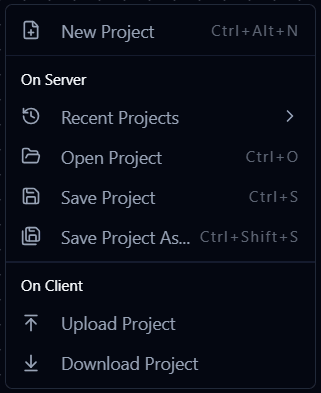
- New Project: Create a new project,
Ctrl + Alt + N(orCmd + Option + Non Mac). - Recent Projects: View and open your recent projects.
- Open Project: Open an existing project,
Ctrl + O(orCmd + Oon Mac). - Save Project: Save the current project,
Ctrl + S(orCmd + Son Mac). - Save Project As: Save the current project with a new name. The project will be switched to the new project after saving,
Ctrl + Shift + S(orCmd + Shift + Son Mac). - Upload Project: Upload a project from a local file.
- Download Project: Download the current project as a local file.
Project Page
Let's open and deploy your first flow on Nara!
Note
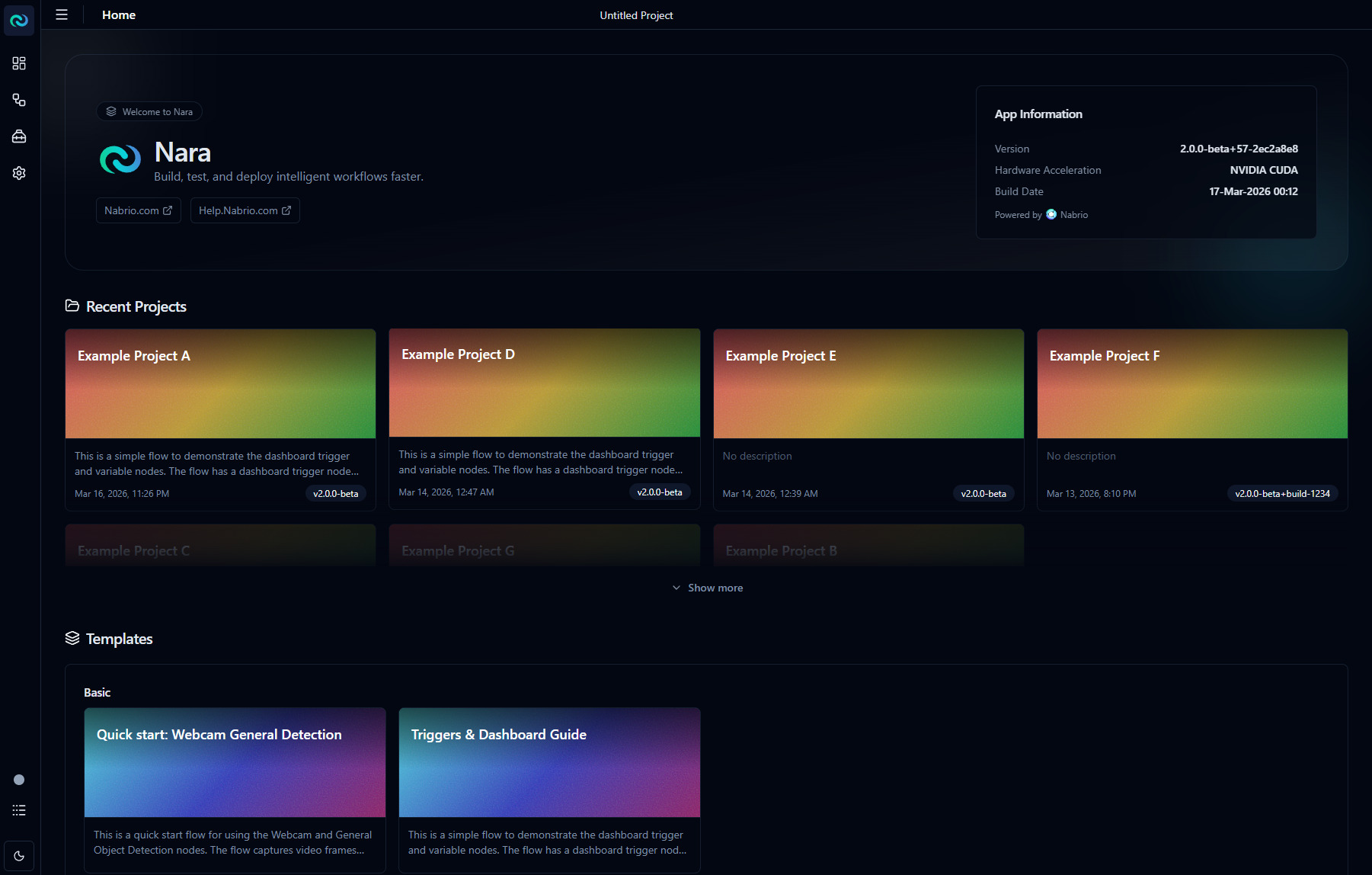
Your project page may look different depending on the version of Nara and your previous projects. If this is your first time running Nara, you will not see the Recent Projects section.
In your Project page, you will find Nara info (version, hardware acceleration, etc.), a list of your recent projects, and templates to quickly get you started.
Templates
Template section contains pre-built flows that you can use as a starting point for your project. You can click on any template card to see more details about the template, and click Open Project to open the flow.