
Options
Learn about the Options menu and how to manage your flow, account, and system settings in Nara.
Overview
The Options menu is where you manage your flow settings, account, license, and other system-level configurations. You can access it from the left navigation bar.
The Options menu is divided into the following sections:
- General: Manage general settings for your current flow, such as deployment and runtime configurations.
- Account: View and manage your account information.
- License: View your license details and activation status.
- Admin: Manage administrative settings, including user access and permissions.
- API Keys: Create and manage API keys for connecting external services to Nara.
- About: View information about your current Nara version and system.
General
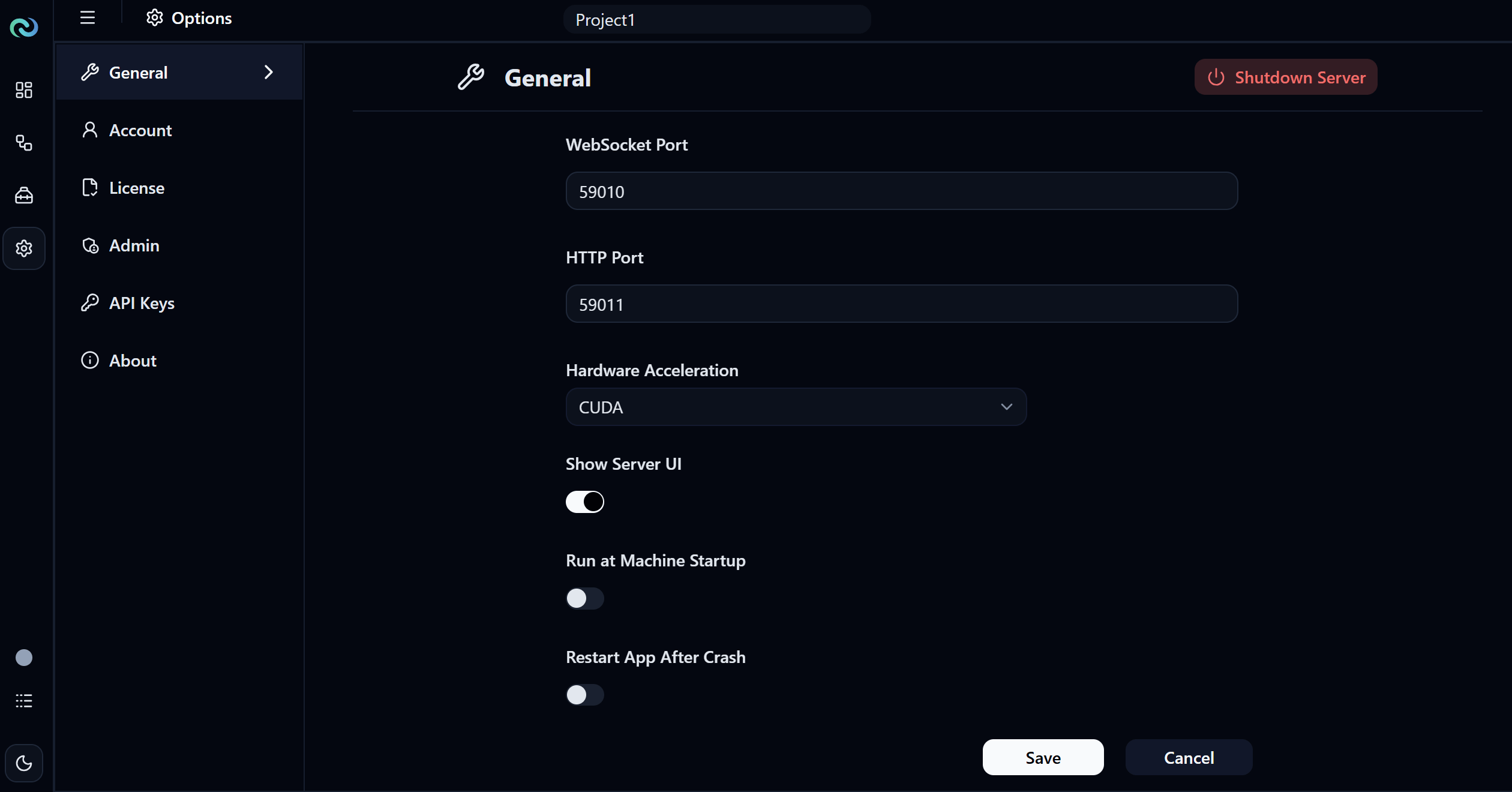
The General section contains general settings for the Nara server, dashboard, and data flow behavior.
Shutdown Server
The Shutdown Server button at the top right shuts down the Nara server. Use this with caution, as it will stop all running flows.
App
WebSocket Port
The port used for the WebSocket connection.
HTTP Port
The port used for the HTTP connection.
Hardware Acceleration
Selects the hardware acceleration backend used by Nara (e.g. CUDA).
Show Server UI
When enabled, shows the server UI.
Run at Machine Startup
When enabled, Nara automatically starts when the machine boots up.
Restart App After Crash
When enabled, Nara automatically restarts itself after a crash.
Session Timeout (sec)
How long a user session stays active before it expires. 0 means no timeout. Default is 1 day (86400).
Server
Server Status Update Interval (sec)
How often, in seconds, the server status is updated.
UI
Critical Alert Notification Mode
Controls how critical alert notifications are dismissed (e.g. Manual close, Auto close).
Warning Alert Notification Mode
Controls how warning alert notifications are dismissed (e.g. Manual close, Auto close).
Info Alert Notification Mode
Controls how info alert notifications are dismissed (e.g. Manual close, Auto close).
Allow Public Dashboard Access
Allow unauthenticated read-only dashboard viewing.
Desktop App UI Launch Mode
How the desktop app opens the UI (e.g. Chromium app window).
Fullscreen in App Mode
Launches the app in fullscreen. Applies only when UI launch mode is the Chromium app window.
Project
Data Flow Autosave Frequency (min)
How often, in minutes, the data flow is automatically saved.
Data Flow Autosave Delete Frequency (days)
How many days autosaved data flow files are kept before being deleted.
Load Last Project at Startup
When enabled, Nara automatically loads the last opened project on startup.
Run Last Project at Startup
When enabled, Nara automatically runs the last opened project on startup.
Flow
Stop Data Flow After Critical Error
When enabled, the data flow stops running after a critical error occurs.
Dashboard
Display Frame Max Dimensions
Maximum dimensions for display frames, in pixels.
Display Frame Quality
Quality of display frames as a percentage (1–100).
Dashboard Update Delay (ms)
Delay between data updates for widgets, in milliseconds.
Nara Database
Nara Database Directory
Directory where Nara database files are stored.
Database File Name
Name of the Nara database file. Default is nara_db.pb.
Account
The Account section lets you view and manage your account information.
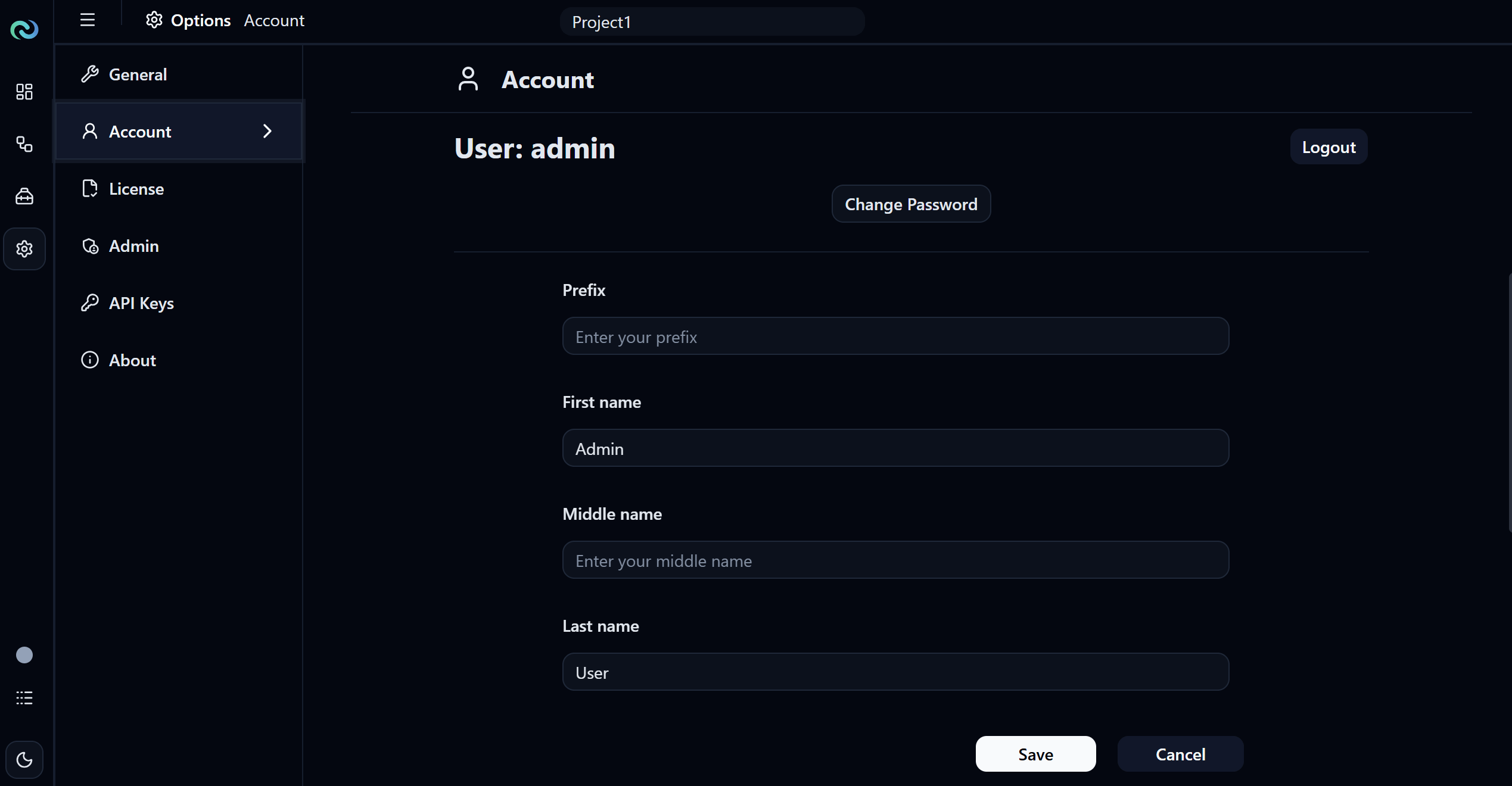
The current logged-in username is shown at the top as User: <username>. Click Logout on the top right to log out of your account, or Change Password to change your account password.
Prefix
Your name prefix (e.g. Mr., Mrs., Dr.).
First name
Your first name.
Middle name
Your middle name.
Last name
Your last name.
Job title
Your job title.
Your email address.
Phone number
Your phone number.
License
The License section shows your current license status and details under Slot Usage Session.
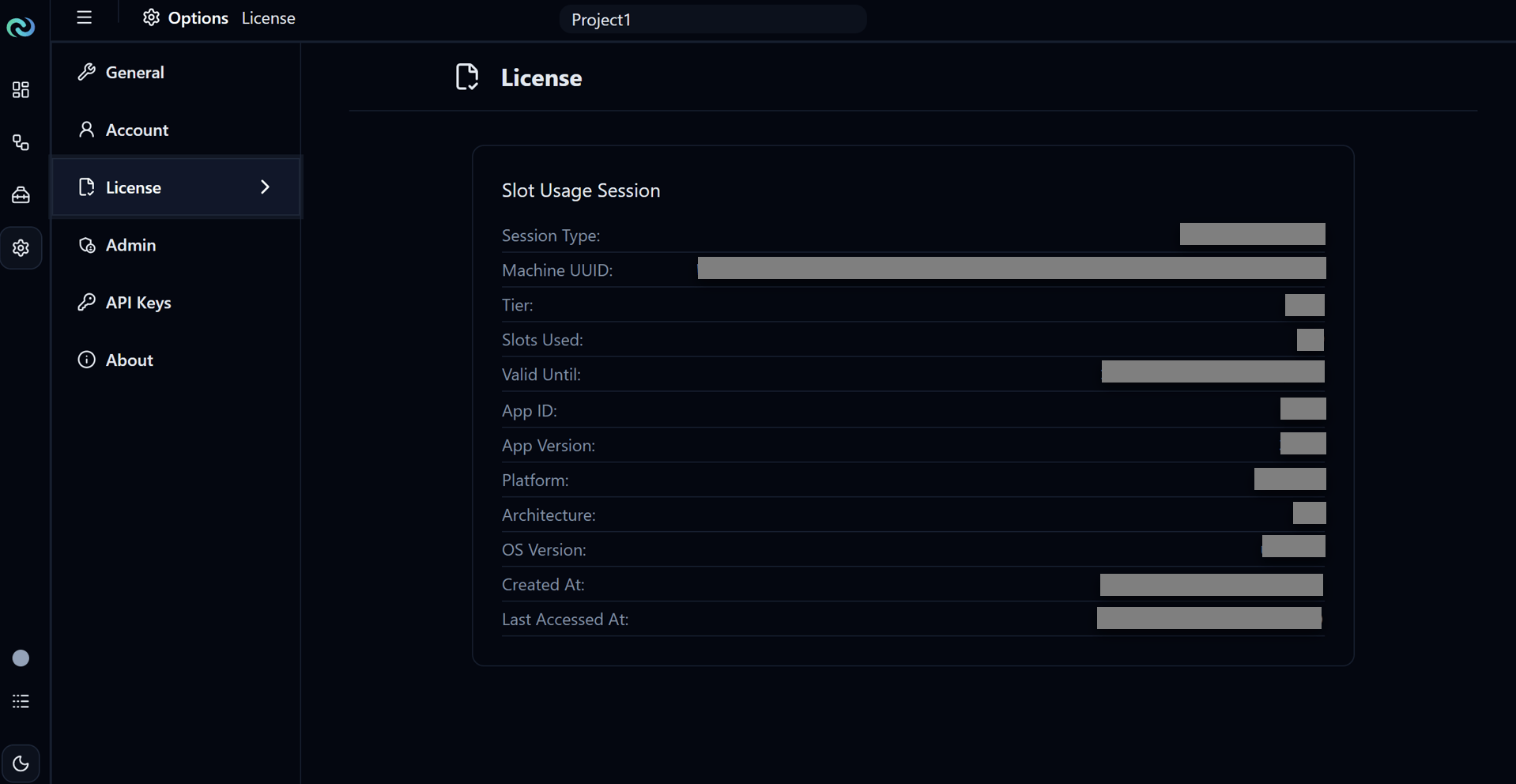
| Field | Description |
|---|---|
| Session Type | How the license is bound, e.g. Machine-locked. |
| Machine UUID | Unique identifier of the machine the license is bound to. |
| Tier | Your current license tier, e.g. FREE. |
| Slots Used | Number of license slots currently in use. |
| Valid Until | Date and time the license expires. |
| App ID | The application the license is for, e.g. Nara. |
| App Version | The version of Nara currently installed. |
| Platform | The operating system platform, e.g. WINDOWS. |
| Architecture | The system architecture, e.g. x64. |
| OS Version | The operating system version. |
| Created At | Date and time the license session was created. |
| Last Accessed At | Date and time the license session was last accessed. |
Admin
The Admin section is where administrators manage user accounts.
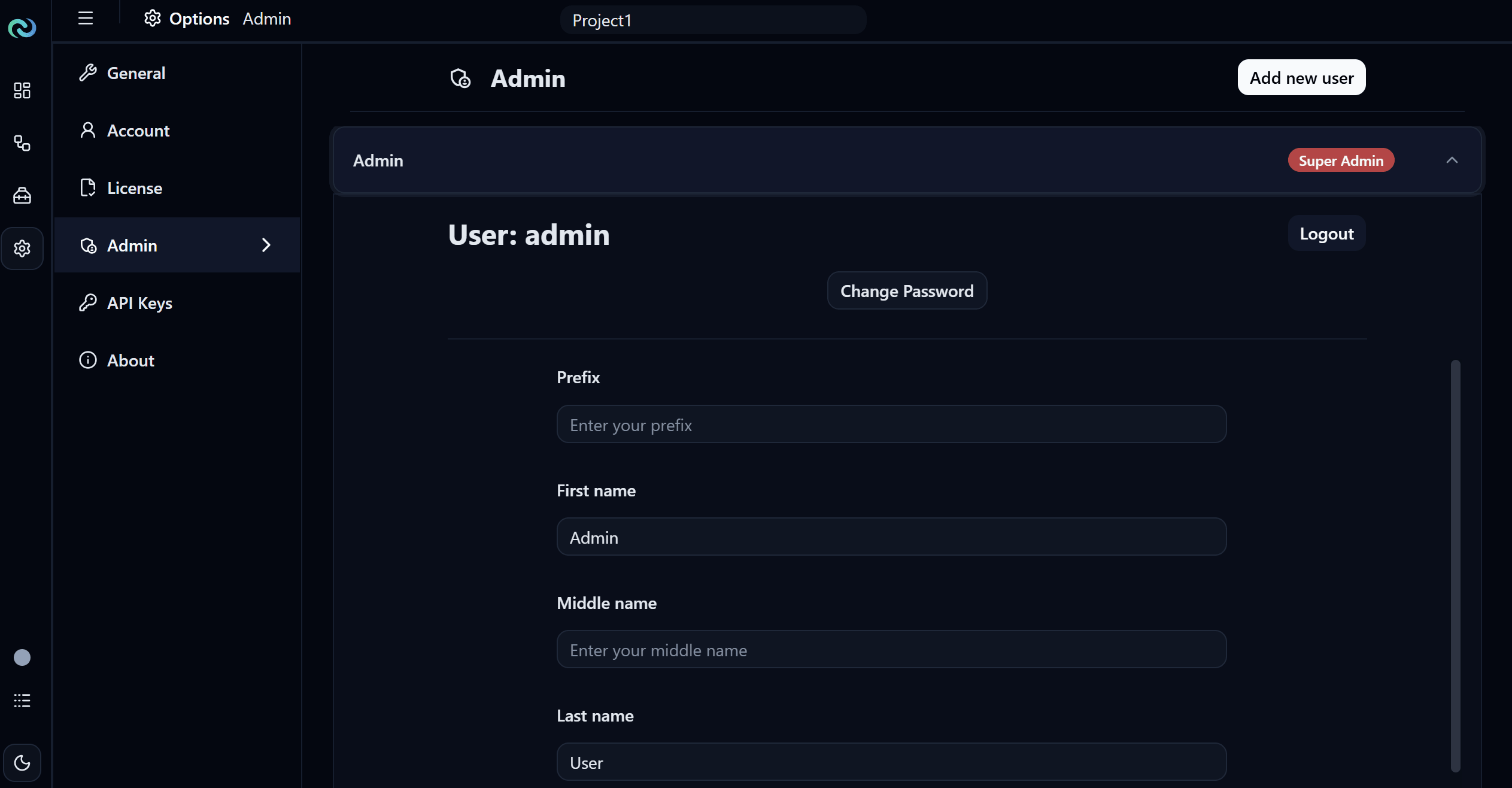
Click Add new user on the top right to create a new user account.
Each user is listed as a collapsible row showing their username and role (e.g. Super Admin). Click a row to expand it and view or edit that user's account details — the same fields as the Account section (Prefix, First name, Middle name, Last name, Job title, Email, Phone number). You can also Logout that user or click Change Password to change their password from here.
API Keys
The API Keys section lets you create and manage API keys used to connect external services to Nara.
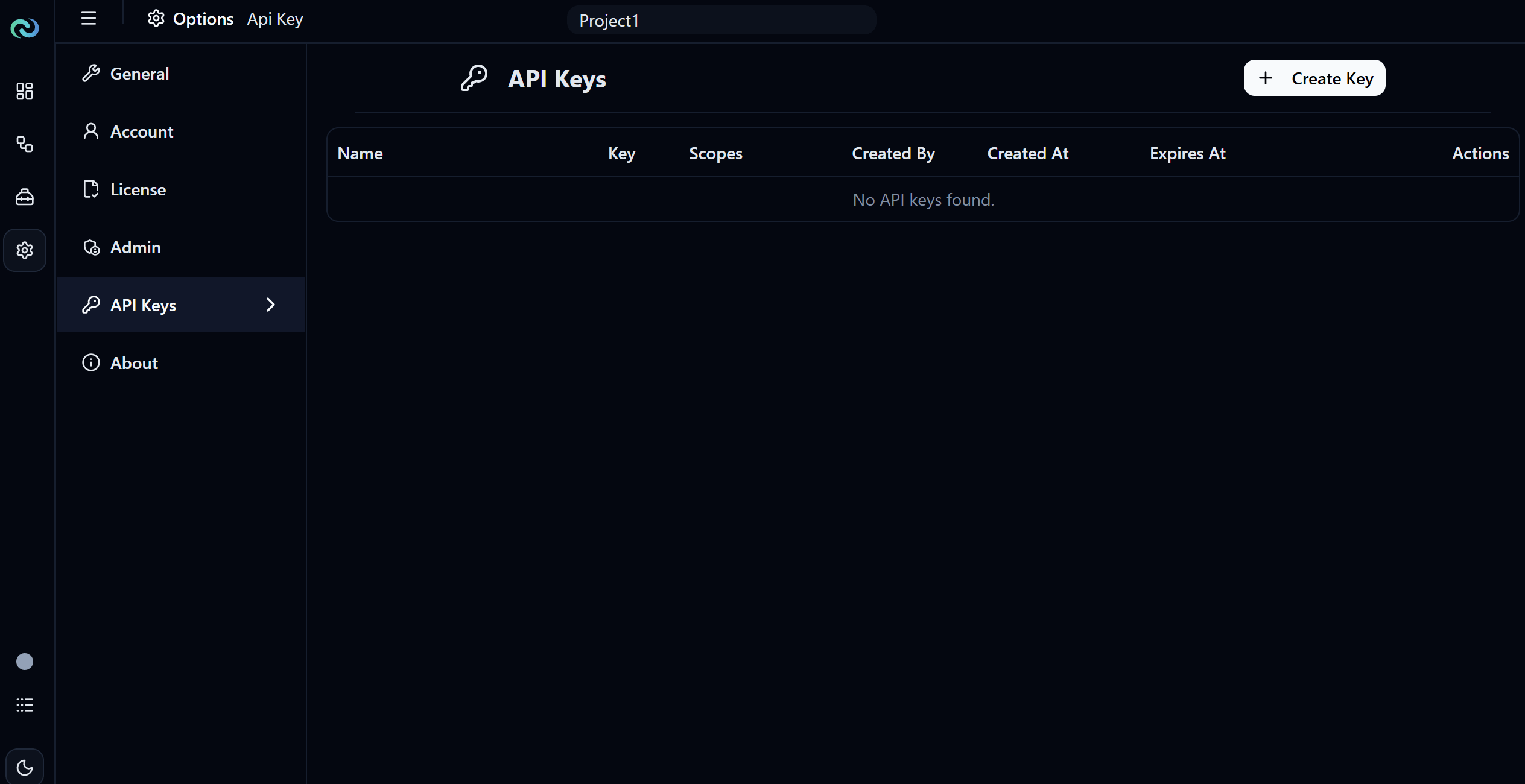
Click Create Key on the top right to create a new API key. Existing keys are listed in a table with the following columns:
| Column | Description |
|---|---|
| Name | The name given to the API key. |
| Key | The API key value. |
| Scopes | The permissions granted to the API key. |
| Created By | The user who created the API key. |
| Created At | Date and time the API key was created. |
| Expires At | Date and time the API key expires. |
| Actions | Actions available for the API key, such as revoking or deleting it. |
About
The About section shows information about your current Nara installation.
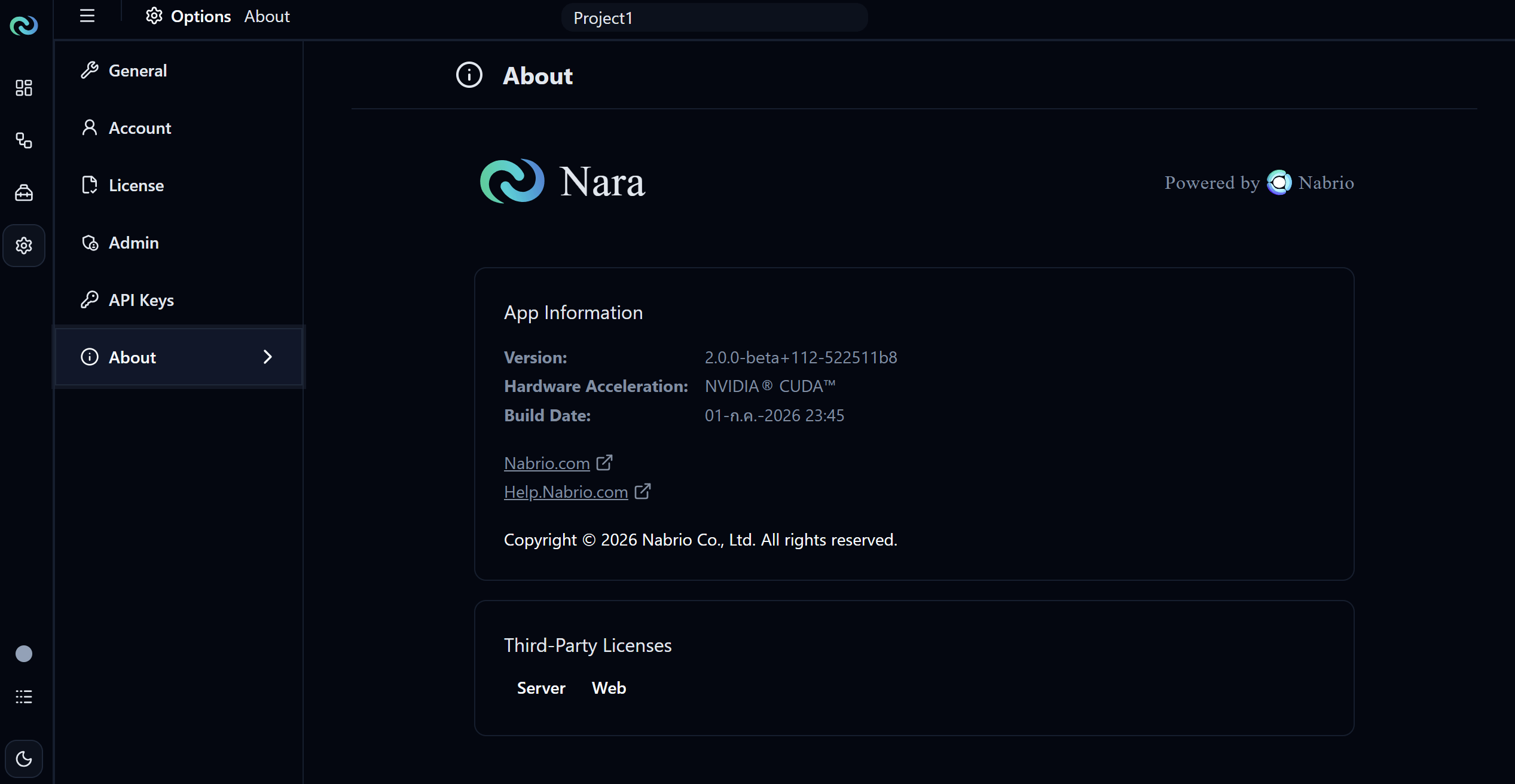
App Information
| Field | Description |
|---|---|
| Version | The current version of Nara installed. |
| Hardware Acceleration | The hardware acceleration backend in use, e.g. NVIDIA® CUDA™. |
| Build Date | Date and time this version of Nara was built. |
Below the app information, you'll find links to Nabrio.com and Help.Nabrio.com, along with the copyright notice.
Third-Party Licenses
Lists the open-source licenses used in Nara, split into two tabs:
- Server: Licenses for third-party packages used in the Nara server.
- Web: Licenses for third-party packages used in the Nara web interface.