
If-Then · Creating conditional paths
Use If-Then to direct a Flow through Then, Else, or Skip, and build a Workshop that evaluates a Number Slider value from the Dashboard.
After setting up continuous video processing, the next step is to decide what the Flow should do with each Frame. The If-Then Node makes this decision by evaluating a condition and directing the Flow to the appropriate output.
1. How If-Else works in general
2. How If-Then works in NARA
When If-Then receives an incoming signal, it evaluates the configured condition and directs the Flow through Then, Else, or Skip. Then is used when the condition is true, Else when it is false, and Skip when the Node does not perform the comparison.
              ┌─ condition is true  → Then
Input data → If-Then
              ├─ condition is false → Else
              └─ comparison skipped → Skip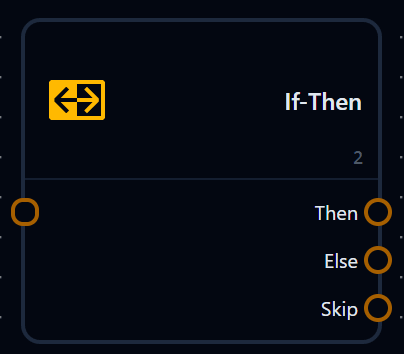
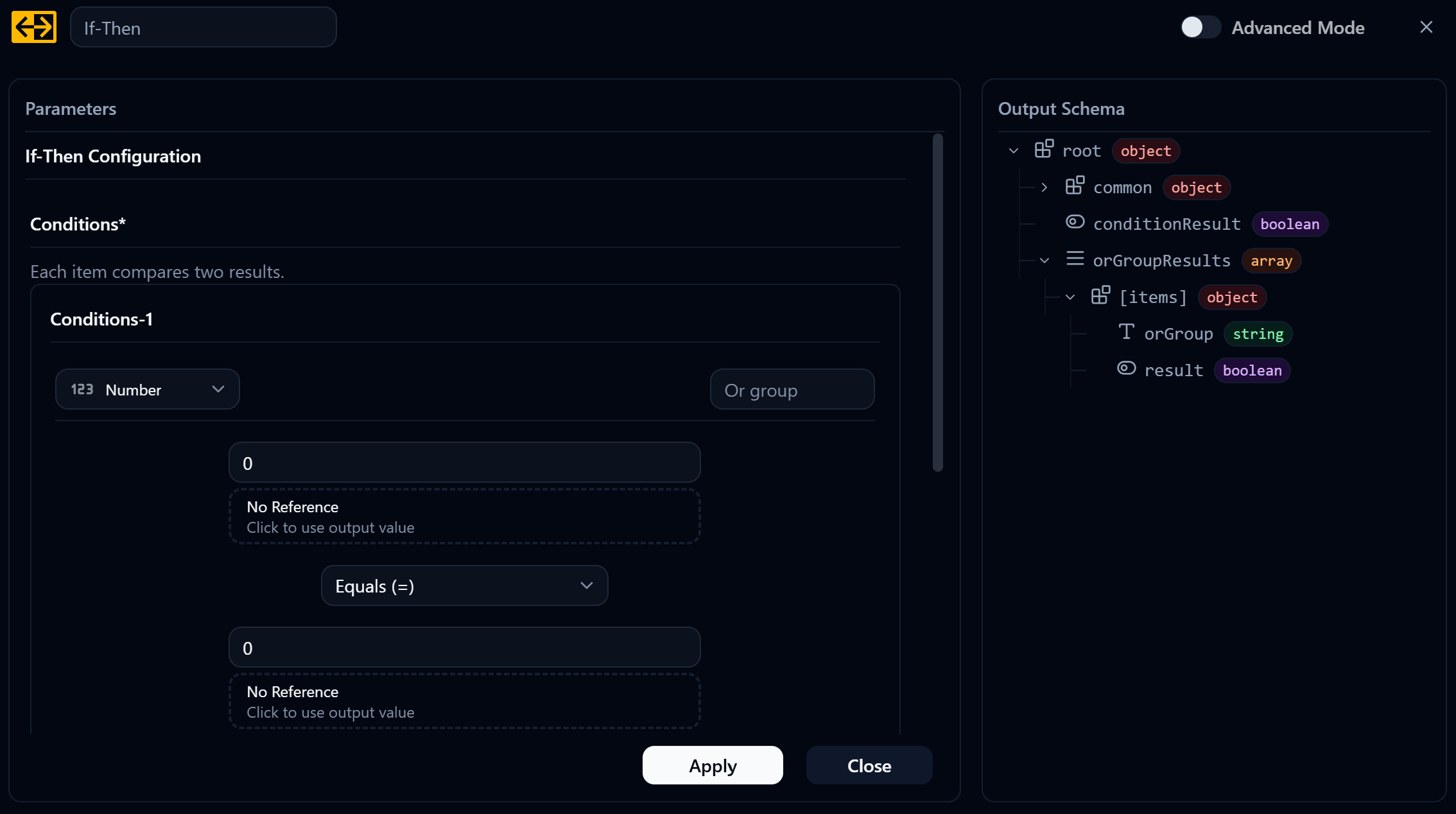
3. Setting up a condition
Each Condition has three main parts:
left value + comparison operator + right valueIn the default settings above, the condition is 0 Equals (=) 0. Since 0 = 0 is always true, the Flow always leaves through Then.
0 = 0 → True → Then4. Data Type
Each Condition also sets a Data Type, which tells the system how to compare the two sides. The choices are:
- string text, compared character by character
- number numbers, with
>,<,=comparing actual values - boolean
trueorfalse - array General Array, a list whose items can be of mixed types
- array String Array, a list of text values
- array Number Array, a list of numbers
Choose the Data Type that matches the values being compared. If numeric values are compared as string, they are evaluated as text. For example, a text comparison can place "9" after "10", producing a different result from a numeric comparison.
5. Fixed Value and Reference
The values on either side of the operator come from one of two places.
- Fixed Value: Enter a constant directly, such as
1,2, or50for number. - Reference: Select an Output from an earlier Node. The condition then uses the value produced at runtime.
6. Workshop · Pulling a value from the Dashboard into the Flow
In this Workshop, the Flow will evaluate a value entered by the user on the Dashboard. A Data Node connects the Dashboard Widget to the Flow.
Start by creating a Variable: Create Node named Temperature, with type number, since it's going to be used with a Number Slider Widget.
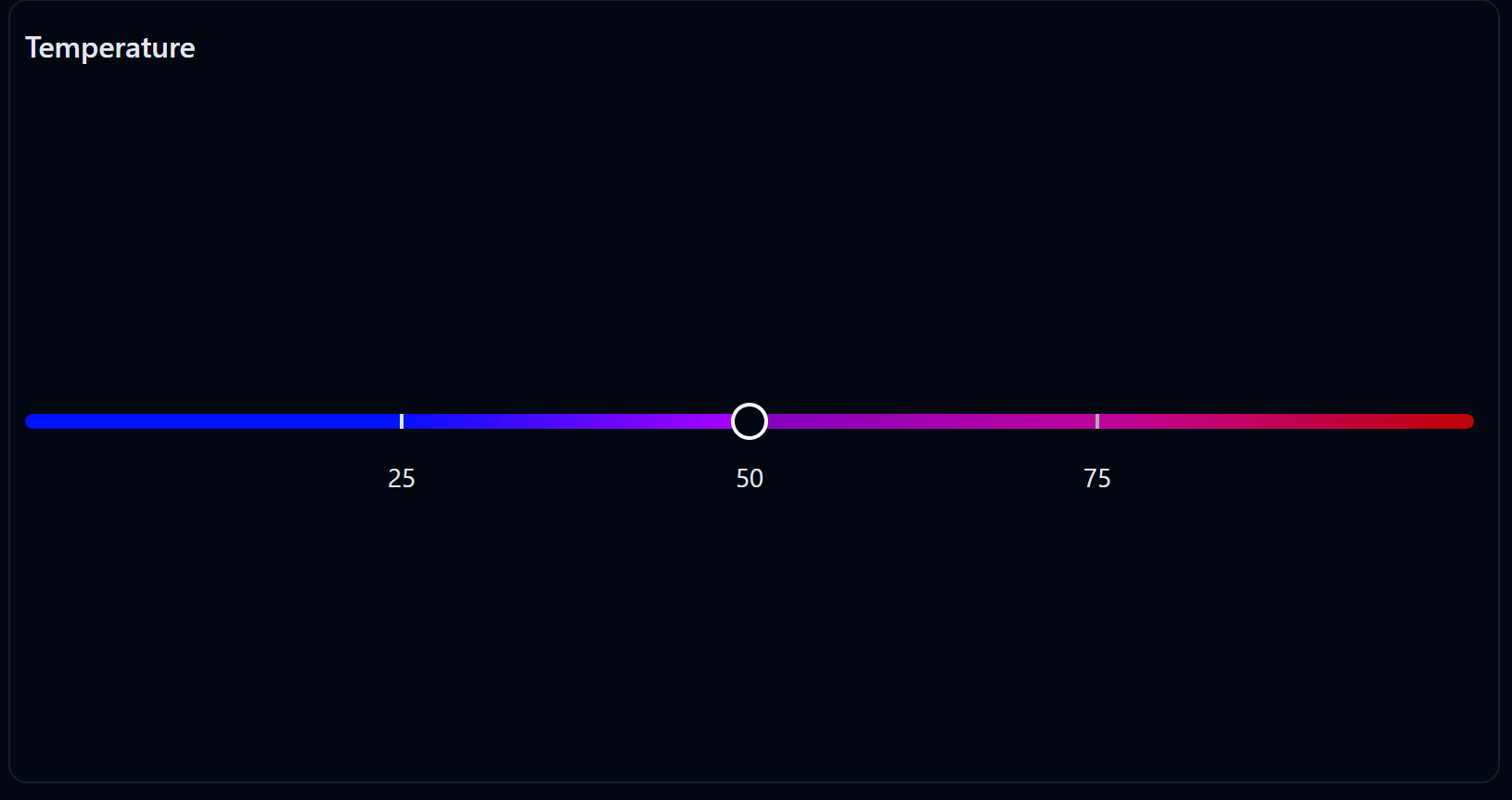
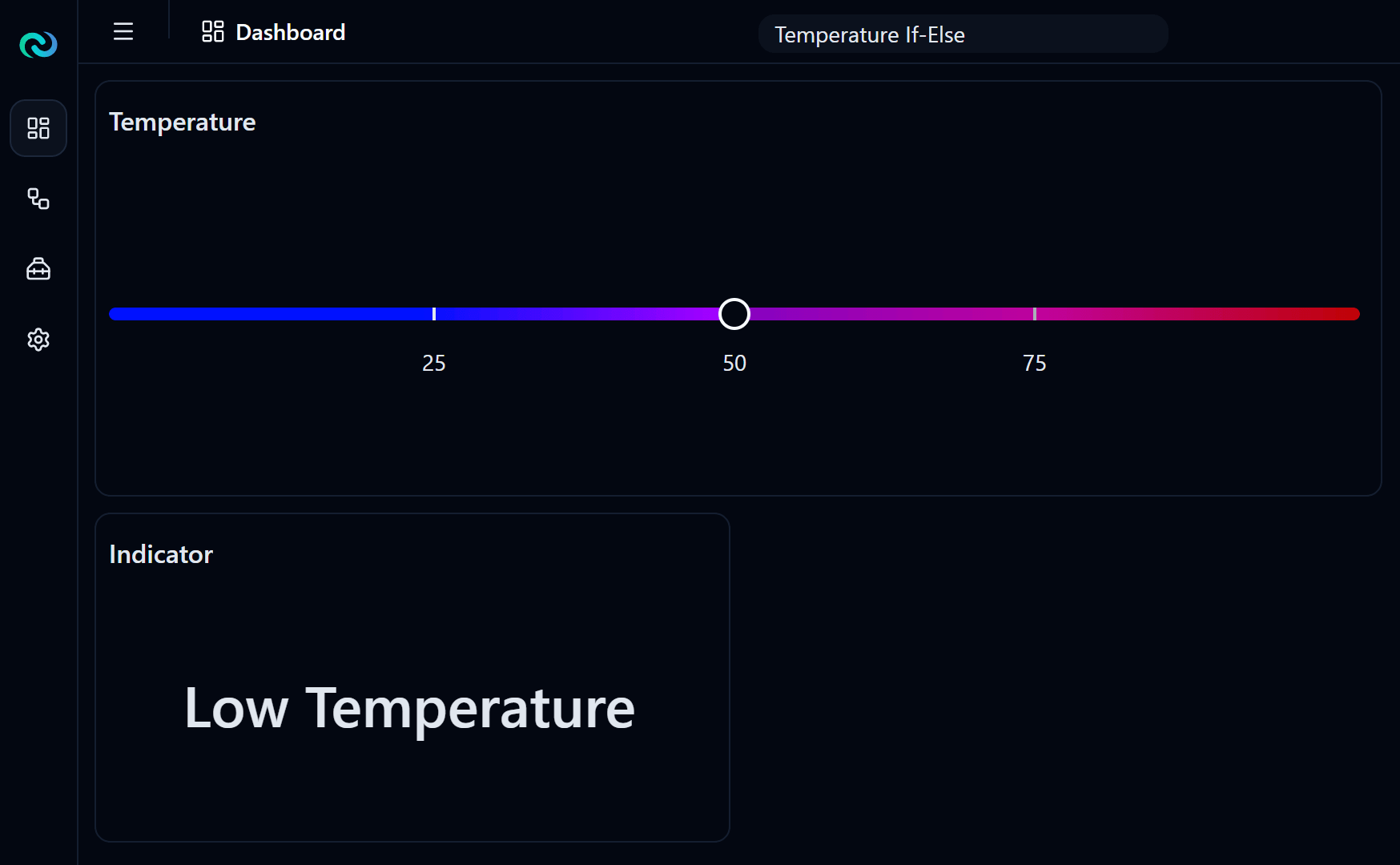
On the Dashboard, add a Number Slider Widget and set its Variable Source to Temperature. The Temperature Variable will hold the current slider value.
7. Workshop · Setting the condition
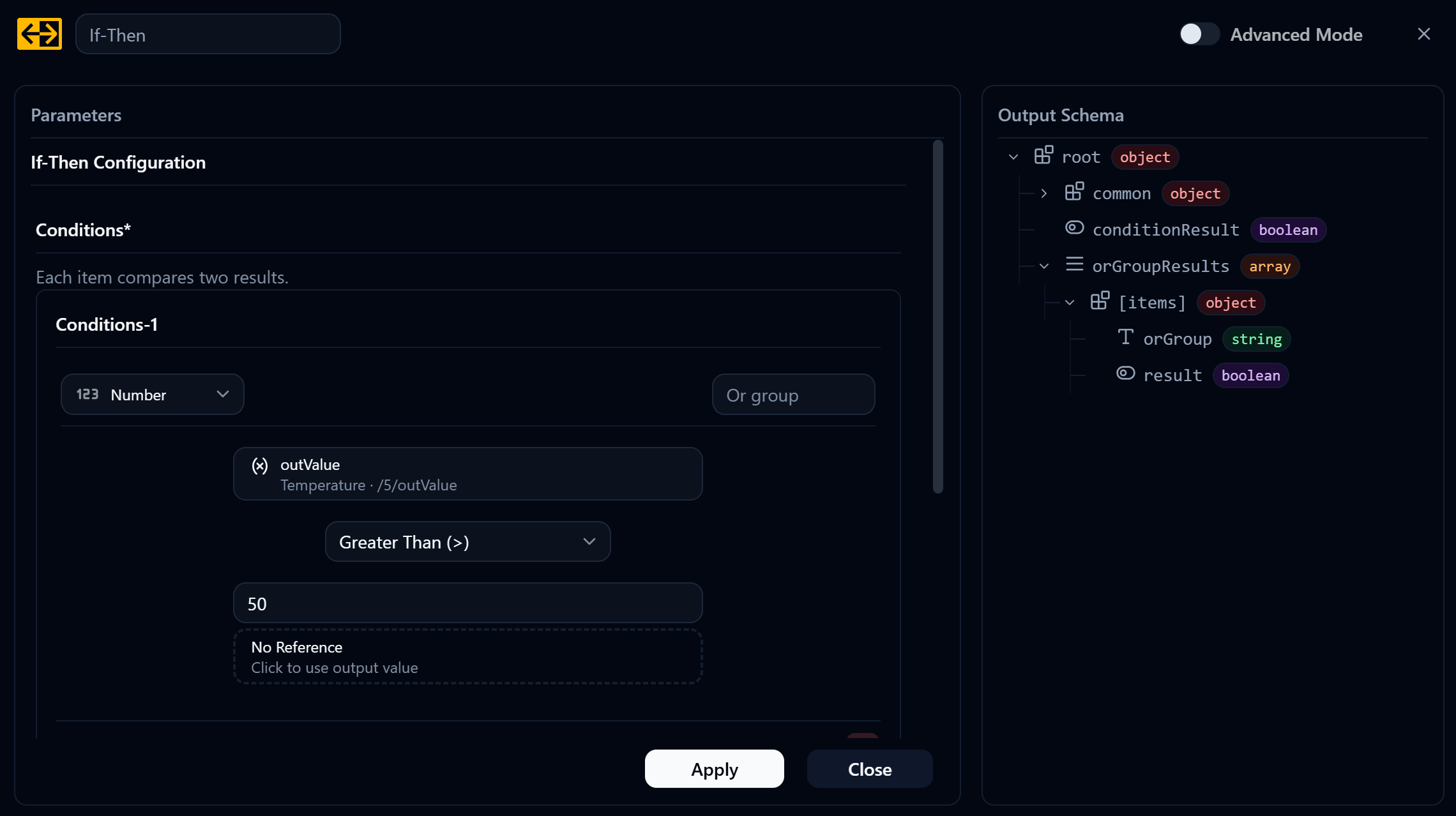
Next we'll use that variable in an If-Then condition, comparing the value from the Temperature Data Node against a Fixed Value.
The Number Slider ranges from 0 to 100. Values from 0 through 50 represent Low Temperature, while values above 50 represent High Temperature. Set the condition to Temperature > 50; when it is true, the Flow continues through Then.
8. Workshop · Showing the result
Now create another Variable: Create Node named Indicator, type string, to report whether we're at Low Temperature or High Temperature.
Then create two Variable: Modify Nodes. Both reference Indicator as their Variable Source, but the contents of the Variable Value field differ.
| Node | Variable Value |
|---|---|
| High Temp | High Temperature |
| Low Temp | Low Temperature |
Connect the Then output to the High Temp Node and Else to the Low Temp Node. Here we'll use a Time Interval Trigger to start it, so the Flow comes back and re-evaluates the condition on whatever interval we set.
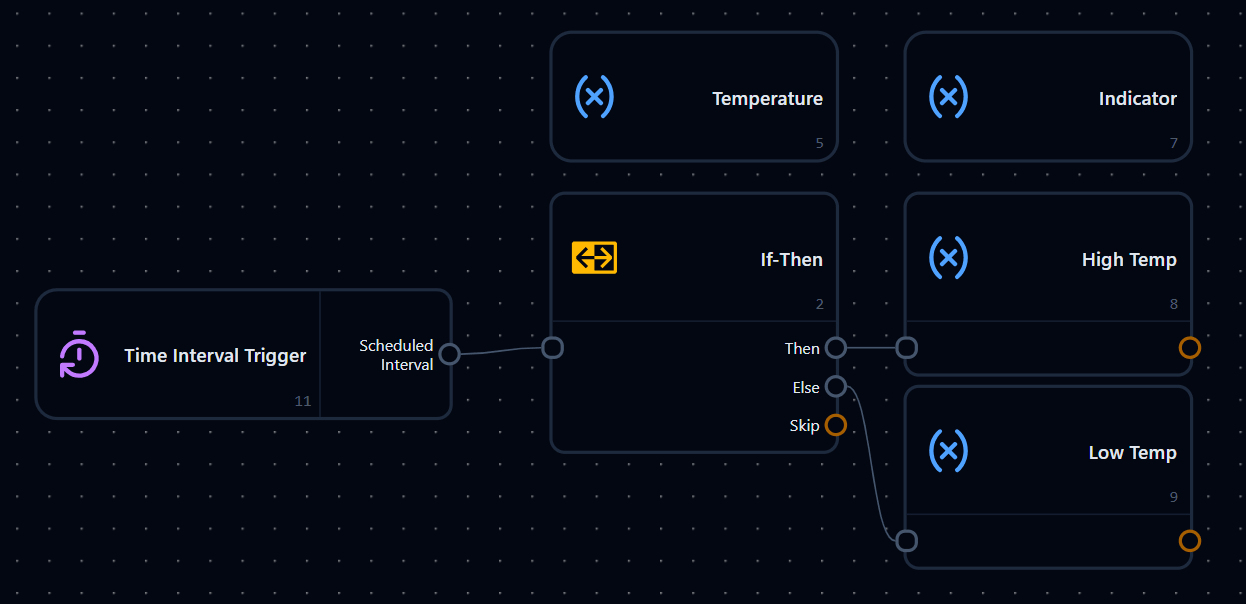
On the Dashboard side it looks roughly like this, with Indicator using a Basic Display Widget and its Variable Source set to Indicator.
9. Trying it out
Deploy the project and move the Number Slider. Above 50, the Indicator displays High Temperature. At 50 or below, it displays Low Temperature.
If the Indicator never changes, work through these:
| Symptom | Likely cause |
|---|---|
| Indicator is empty | The Widget's Variable Source isn't set to Indicator |
| Indicator never changes value | No Trigger is running, or the Time Interval is set too long |
| Always High or always Low | The condition's Data Type is string instead of number |
| Moving the slider does nothing | The Number Slider's Variable Source isn't set to Temperature |
Next
When a Flow needs more than two paths, Switch Case is often easier to read than several connected If-Then Nodes. Continue to Switch Case · Branching many ways from one value.
While Loop · Reading video frame by frame
Why a video Input reads only one frame, how the While Loop Node repeats the work to make it continuous, why the picture should be resized before anything else uses it, and what Loop Delay, Break Loop, and Invert Break Condition do.
Switch Case · Creating multiple paths from one value
Use Switch Case to compare one value with up to four Cases, then build a Workshop that converts a machine mode number into a status message.